Manage Raw Material Stocks
This guide explains how to manage raw material stocks from the merchant app.
Prerequisites
- You are logged in to the merchant app with a role that has edit access to Inventory.
Step 1: Open the Inventory module
- From the main navigation bar, click Inventory.
- On the Inventory page, click the Base Menu tab if it is not already selected.
Step 2: Quick stock update
To immediately change any raw material's stock:
- Click the Kebab menu (vertical ellipsis) icon in the raw material's row and select Manage stocks.
- Enter the new stock quantity.
- Optionally, enter the total value of the added stock to calculate the average value of the current stock.
- Click OK.
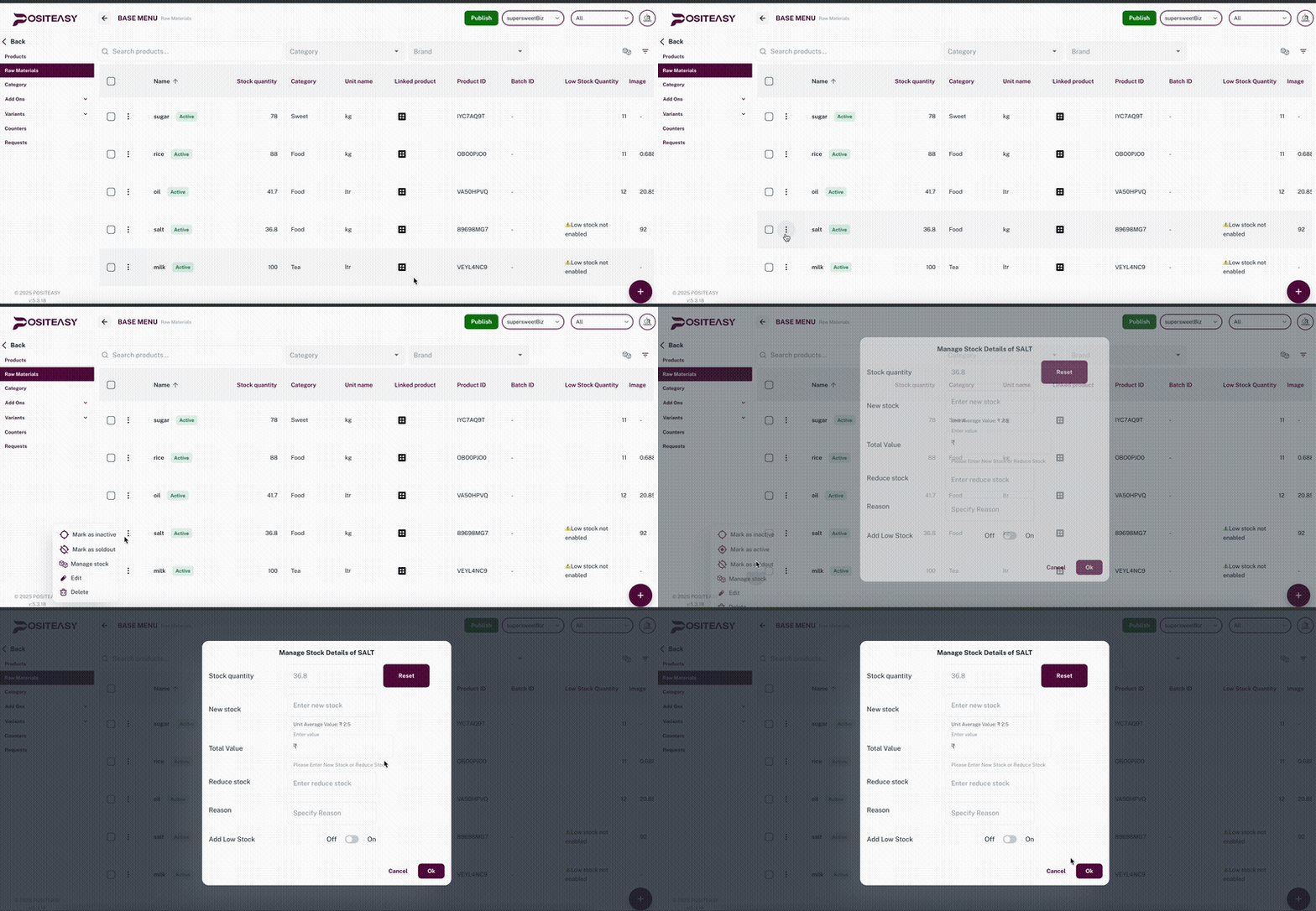 Quick stock edit form.
Step 3: Reduce or reset stock
To decrease or reset stock with a proper reason:
-
Click the Reset button to reset your stock to zero (sold out).
-
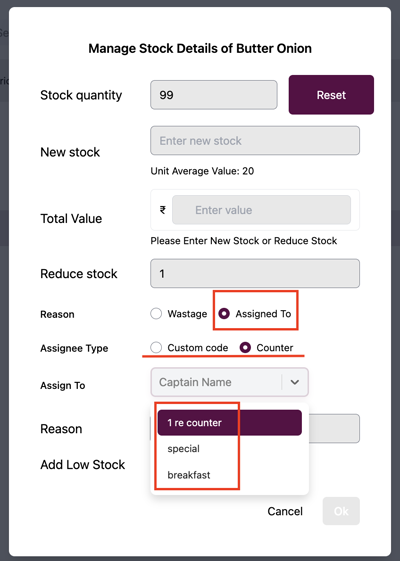
To reduce stock by a specific quantity, enter the reduce stock quantity and select a Reason:
2.1 Wastage to reduce the stock as wastage. You can view this in wastage reports.
2.2 Assigned To to reduce the stock based on Custom code or Counter (Assignee Type), then select the corresponding name in the Assign To dropdown.
Step 4: Low stock (optional)
- Enter the low stock quantity for a raw material.
- When low stock is enabled and a quantity is set, the merchant receives alerts when the raw material stock reaches the low stock threshold.